21 Hidden Canva Tricks That Make Designs Look Premium
Graphic Designers Don’t Share These Canva Secrets
- Design Faster
- Look More Professional
- Save Hours of Work
- Create Premium Designs Without Expensive Software
Think Canva is just drag-and-drop?
Discover 21 hidden Canva secrets professional graphic designers use to create stunning designs faster. Learn time-saving tricks, advanced features, and creative workflows that most beginners never discover.
What if I told you…
Two people can use the same Canva template…
The same fonts…
The same images…
And yet one design looks ordinary, while the other looks like it was created by a professional designer.
The difference isn’t luck.
It isn’t years of experience.
It’s knowing a few hidden Canva techniques that most people never use.
Today, you’re about to discover those secrets.
Quick Answer
Professional-looking Canva designs don’t come from expensive templates—they come from smart workflows. Hidden features like Layers, Brand Kits, Magic Resize, Background Remover, Styles, Frames, Mockups, Alignment tools, Transparency, and Keyboard Shortcuts help designers work faster while producing cleaner, more polished designs.
Table of Content
- Why Most Canva Designs Look Amateur
- The Biggest Mistake Beginners Make
- 21 Canva Secrets Professionals Use
- Real Design Transformation
- Canva Features Worth Using
- Common Design Mistakes
- Pro Tips
- Canva Design Checklist
- FAQs
- Conclusion
Introduction
Millions of people use Canva every day.
But only a small percentage create designs that instantly grab attention.
Why?
Because most users only know about templates, text, and elements.
Professional designers know Canva has dozens of hidden features that save time, improve consistency, and make every design feel premium.
Let’s uncover them.
Story
A small business owner wanted Instagram posts that looked professional.
She spent over two hours creating one post.
Even after all that effort…
The design still looked average.
A designer opened the same Canva file.
Within 20 minutes, they:
• Improved alignment
• Fixed spacing
• Used hidden keyboard shortcuts
• Applied a color style consistently
• Added subtle shadows and transparency
• Organized layers
The final design looked like it came from a creative agency.
The difference wasn’t talent alone—it was knowing Canva’s hidden features.
Problem
Most Canva users:
❌ Add too many fonts.
❌ Use random colors.
❌ Ignore spacing.
❌ Don’t organize layers.
❌ Never use Canva’s advanced tools.
As a result, their designs look cluttered instead of professional.
Statistics
• Canva is used by millions of creators worldwide.
• Visual content consistently attracts more engagement than text-only content.
• Consistent branding helps businesses become more recognizable.
The best-performing designs are usually simple, consistent, and easy to understand.
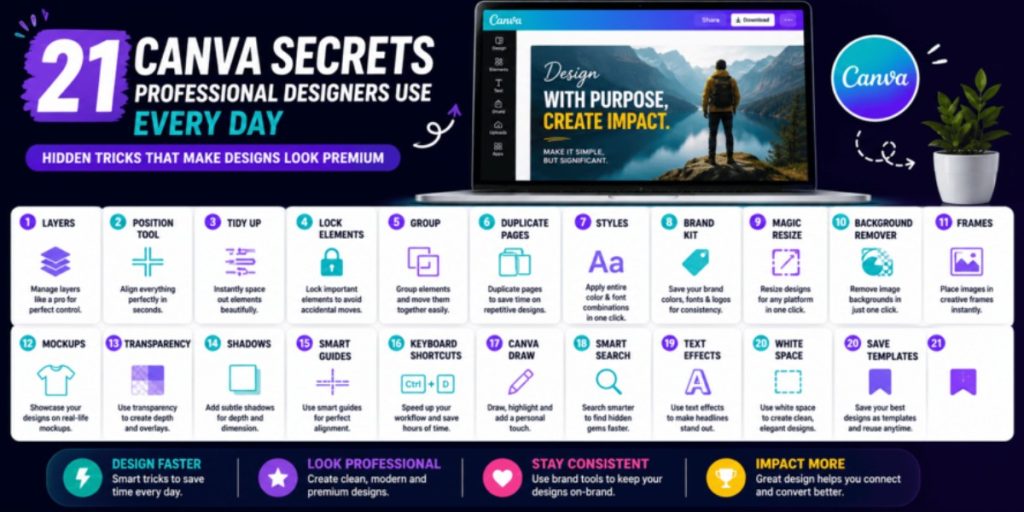
Step-by-Step Guide
Secret #1 — Use Layers
Arrange elements precisely.
Bring objects forward.
Send them backward.
Lock backgrounds before editing.
Secret #2 — Position Tool
Instead of dragging manually…
Use Position to perfectly align every object.
Professional designs rely on clean alignment.
Secret #3 — Tidy Up
Select multiple elements.
Click Tidy Up.
Canva automatically spaces everything evenly.
Secret #4 — Lock Elements
Finished with a logo?
Lock it.
Now you won’t accidentally move it.
Secret #5 — Group Elements
Select multiple objects.
Press Ctrl + G.
Move everything together.
Huge time saver.
Secret #6 — Duplicate Pages
Instead of creating every design from scratch…
Duplicate pages.
Change only:
• Text
• Images
• Colors
Perfect for Instagram carousels.
Secret #7 — Styles
Apply an entirely new color palette and font combination with one click.
This instantly refreshes an old design.
Secret #8 — Brand Kit
Store:
✔ Brand colors
✔ Logos
✔ Fonts
✔ Brand assets
Maintain consistency across every design.
Secret #9 — Magic Resize
Need one design for:
Use Magic Resize instead of recreating everything manually.
Secret #10 — Background Remover
Remove image backgrounds in seconds for cleaner compositions.
Secret #11 — Frames
Drop photos into creative shapes without complex editing.
Perfect for modern layouts.
Secret #12 — Mockups
Show your design on:
Laptop screens
Phones
Billboards
T-shirts
Packaging
This makes client presentations much more impressive.
Secret #13 — Transparency
Lower opacity to create subtle overlays, soft backgrounds, and depth.
Secret #14 — Shadows
Small shadows make text and images easier to read while adding dimension.
Secret #15 — Smart Guides
Pink guide lines help align everything perfectly.
Don’t ignore them.
Secret #16 — Keyboard Shortcuts
Duplicate:
Ctrl + D
Group:
Ctrl + G
Undo:
Ctrl + Z
These shortcuts save countless clicks.
Secret #17 — Canva Draw
Use drawing tools to highlight important points or add a handwritten feel.
Secret #18 — Elements Search
Search smarter using terms like:
Gradient
Blob
Minimal
Glass
Duotone
Shadow
You’ll discover hidden assets most users never find.
Secret #19 — Text Effects
Use:
Curve
Lift
Splice
Shadow
Outline
Sparingly for eye-catching headlines.
Secret #20 — White Space
Not every area needs decoration.
Empty space makes designs easier to read and feel more premium.
Secret #21 — Save Your Best Templates
Create reusable templates for social posts, presentations, and marketing materials to speed up future projects.
Examples
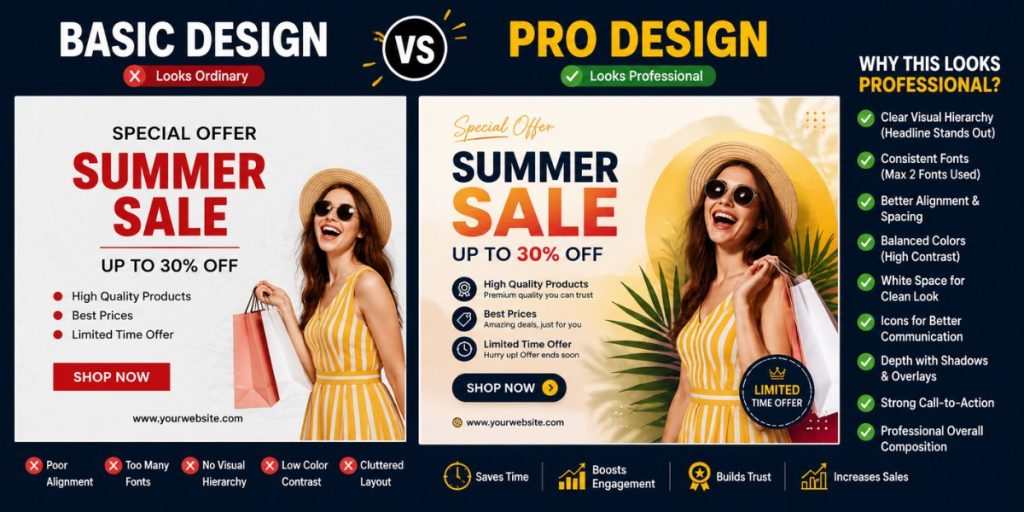
| Beginner Design | Professional Canva Design |
| Five fonts | Two fonts |
| Bright random colors | Consistent colors |
| Uneven spacing | Balanced spacing |
| Disorder | Clear structure |
| Crowded layout | Plenty of white space |
Visuals
Include:
• Canva Layers Illustration
• Before vs After Design
• Alignment Guide
• Typography Comparison
• Color Palette Example
• White Space Demonstration
• Brand Kit Screenshot
• Canva Workflow Diagram
Case Study
A freelance designer spent nearly three hours creating each social media post.
After learning Canva’s hidden tools:
• Templates replaced repetitive work.
• Brand Kit ensured consistent branding.
• Magic Resize adapted designs for multiple platforms.
• Position and Tidy Up improved layout quality.
The designer produced more content in less time while maintaining a professional look.
Canva Features Worth Mastering
✔ Brand Kit
✔ Magic Resize
✔ Background Remover
✔ Mockups
✔ Frames
✔ Layers
✔ Styles
✔ Position Tool
✔ Transparency
✔ Text Effects
✔ Smart Guides
✔ Keyboard Shortcuts
Common Canva Mistakes
❌ Using too many fonts
❌ Overusing animations
❌ Ignoring spacing
❌ Stretching images
❌ Using low-quality photos
❌ Filling every empty space
❌ Inconsistent colors
❌ Misaligned elements
Expert Tips
✔ Follow the “less is more” principle.
✔ Keep a consistent color palette.
✔ Limit yourself to two fonts.
✔ Use templates as a starting point, not a finished design.
✔ Zoom in before exporting to catch alignment issues.
✔ Build your own library of reusable design components.
Canva Design Checklist
☐ Consistent colors
☐ Maximum two fonts
☐ Balanced spacing
☐ Proper alignment
☐ High-quality images
☐ Readable text
☐ Strong visual hierarchy
☐ Brand logo included (if needed)
☐ Mobile-friendly layout
☐ Exported in the correct format
FAQs
Can Canva create professional designs?
Yes. With the right techniques and design principles, Canva can produce high-quality work suitable for businesses, social media, presentations, and marketing.
Do I need Canva Pro to make great designs?
No. Many excellent designs can be created with the free version, though Pro features like Brand Kit and Magic Resize can improve efficiency.
What’s the biggest Canva mistake beginners make?
Adding too many fonts, colors, and decorative elements instead of focusing on simplicity and clarity.
How can I make my Canva designs look premium?
Use consistent branding, proper alignment, white space, limited fonts, and high-quality visuals.
Conclusion
Canva isn’t powerful because it offers thousands of templates.
It’s powerful because it includes professional tools that many users overlook.
Mastering these hidden features can help you design faster, maintain consistency, and create visuals that stand out—without needing complex software.
The best designs aren’t always the most complicated.
They’re the ones that communicate clearly and look polished.
Free Resource
Free Canva Pro Designer Checklist
Includes:
✔ 50 Canva shortcuts
✔ Font pairing ideas
✔ Color combination guide
✔ Design hierarchy checklist
✔ Social media size guide
✔ Export settings cheat sheet
FLM DM Course 19th Batch-Panda Sri sai pujitha
Related Articles
Comments
Which Canva secret surprised you the most?
Share your favorite Canva tip in the comments, save this guide for future projects, and send it to someone who wants their designs to look more professional.
Leave a Comment